Fingerworks TouchStream LP Zero-Force Keyboard
C$
975
$
681


Favourite Auctions
To save auctions to your favourites, please login
If you don't have an account, please register
Description
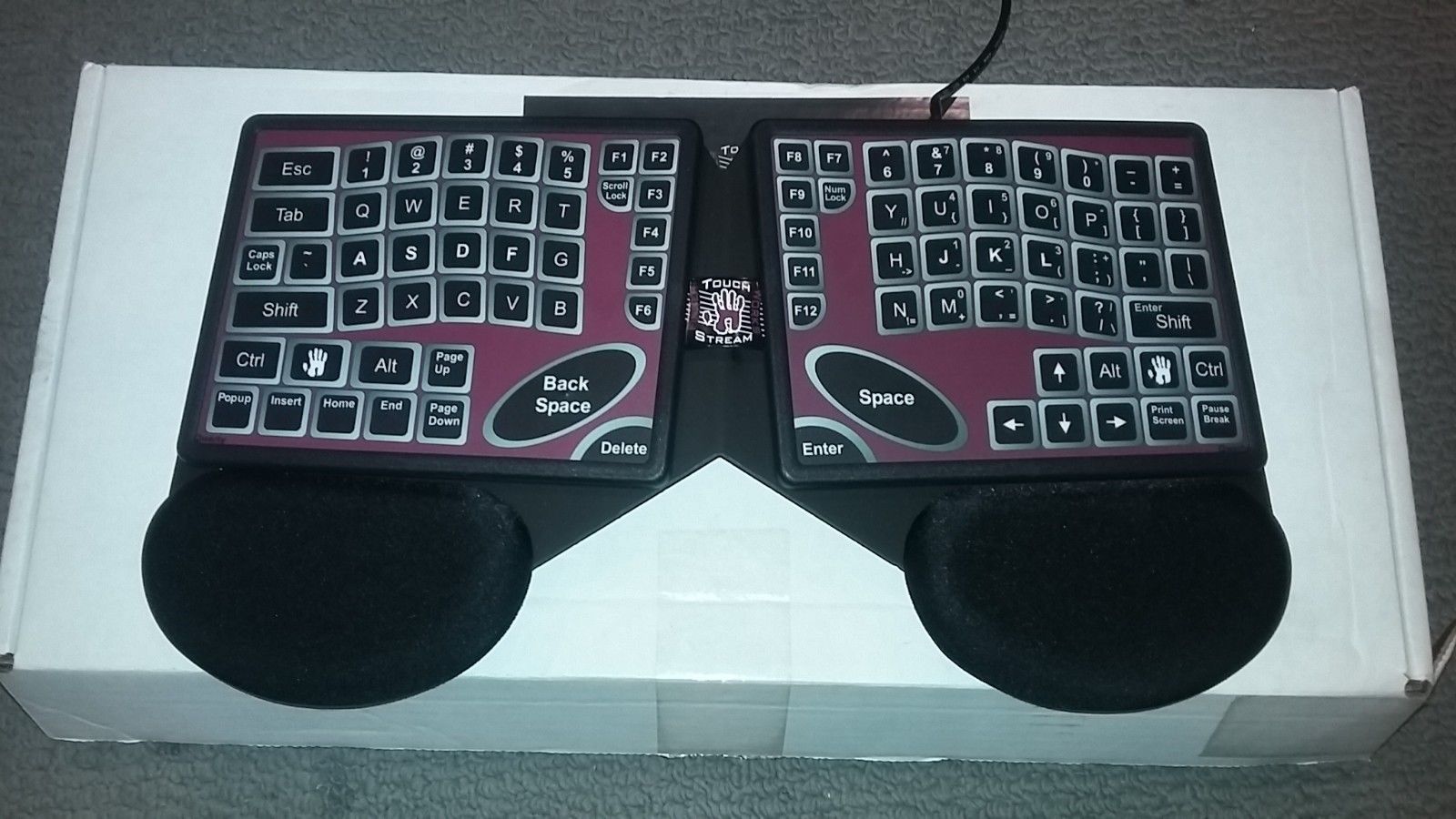
The TouchStream LP is identical to the TouchStream ST except that it can be removed from its frame and folded into a small package making it incredibly portable. The TouchStream LP completely replaces your existing keyboard and mouse with an integrated package that packs a lot more power and capability.
The LP's large surfaces are more than big enough for full-range mousing, ZeroForce touch-typing, and gesture input. In addition, when you want to take the LP on the road or from place to place it folds into an easily carried package that fits nicely in a brief case or backpack.
What’s truly amazing about TouchStream Keyboards is that key, mouse, and gesture input all occur in the same overlapping area of the MultiTouch surface. This means that when you switch between typing and mouse, for example, you don’t have to move your hand to grab the mouse since it’s always under your fingertips. This benefit is only fully appreciated after using a TouchStream Keyboard for a few minutes.
The LP can be ordered with either a QWERTY or DVORAK layout.
Why Switch to a TouchStream?
Why use a TouchStream keyboard in place of a mechanical keyboard and mouse?
- Simple, amazingly quick gestures replace common multi-key operations like open, save, cut, copy, paste, undo, and a bunch of others.
- One never has to reach for the mouse. The mouse function is always underneath the finger tips.
- Each gesture is so simple and quick that one can easily string them into command phrases.
- Users do not have to sit near their desks in order to keep close to the mouse.
- Hands may rest on the touch surface without generating unwanted input.
- Typing is done using zero-force "keys" thereby reducing strain on tendons and joints.
- Gestures employ a wide variety of finger combinations and hand motions so you are less likely to stress a particular muscle or tendon.
- The keyboard uses standard mouse and keyboard drivers. You don't have to install any additional software on your system.
How to Use the LP
HEALTH WARNING: If you experience symptoms such as persistent or recurring discomfort, pain, throbbing, aching, tingling, numbness, burning sensations or stiffness in your hands, arms, shoulders, neck, or other parts of your body when using a computer, DO NOT IGNORE THESE WARNING SIGNS! PROMPTLY CONSULT YOUR DOCTOR OR PHYSICAL THERAPIST. Ask them for guidance BEFORE trying any new input devices! Remember that pain is likely to increase during the first few days of trying a new device because your body tends to tense up as it is learning new motions and postures. You may also be more susceptible to further injury during this learning period. For this reason, your doctor may tell you to restrict use of new devices to short periods of a few minutes a day for the first few days or weeks while your body adjusts.
- General Typing:
Tap each key's symbol lightly but crisply with one finger at a time. Do NOT bang on the keys. Try using the minimum force possible. Relax between words by resting all ten fingers on surface and resting palms on gel pads. - Hand Resting:
To rest a hand without activating keys, drop ALL FIVE fingers SIMULTANEOUSLY anywhere on the surface. Palms are ignored by MultiTouch so they can rest either on the gel pads or anywhere on the touch surface. - Hunt & Peck Typing:
Tap each key's symbol lightly but crisply with one finger at a time, taking care not to accidentally tap unintended keys. (It may be easiest to float your hands above the surface while typing, but rest them during pauses). - Typematic:
To activate 'typematic' or auto-repeat, lift all fingers of a hand off the surface, then touch and hold one finger on the desired symbol. Once that key starts repeating, you can drop the other fingers back onto the surface. To stop typematic, lift any finger off the surface. - Modifier Chords (Shifting):
Reaching for the Shift keys can be even more awkward on a touch surface than on a normal keyboard. Therefore we invented a much more comfortable, zero-reach alternative called Modifier Chords that you'll probably want to learn:- When ready to capitalize a letter, just drop and hold 4 fingertips from one hand (excluding the thumb) on home row. This is the Shift chord.
- Type the letter to be capitalized with the opposite hand.
- OR: Lift one of the 4 fingertips from the Shift chord and use it to tap the letter (while the others stay on surface).
- Lift all 4 of the fingertips off home row. This turns off Shift.
- The 4 fingertips don't actually have to drop on home row. Just drop them in a row fairly close together anywhere on the surface.
- Spreading the 4 fingertips wide as you drop them on the surface activates the Ctrl chord, which works similarly. On Macs this will be the Open Apple/Cmd modifier. Alt, AltGr and Win/Meta chords are also available if you enable Enhanced Modifier Chords.
- To type whole words uppercase with a single Shift chord, just make sure at least 1 of the 4 fingertips remains on the surface as you type desired letters. (Lift one or two of the 4 fingertips at a time to reach for keys, and leave them down as they drop on target keys).
- Shift-click can be done with modifier chords by holding the Shift chord with one hand and tapping 2 fingertips with the other hand.
- OR: Shift-click within one hand by dropping 4 fingertips, then lifting and tapping 2 of the 4 simultaneously.
- Be careful not to roll the 4 fingertips as the Shift chord begins or you will get scrolling instead.
- When you want to rest a hand, make sure to drop all 5 fingers (including thumb) simultaneously. Resting just 4 fingers may be interpreted as a Shift chord.
- Regular modifier keys are still needed for multi-modifier hotkeys like Ctrl-Alt-Delete. Make sure the fingers come down on the Ctrl and Alt keys one at a time--if they strike simultaneously they could be misinterpreted as a two-finger click.
- Touch typing- For most of us:
We highly recommend that you follow these steps when you are just starting out. We've found through experience that most people reach a satisfactory level of accuracy and speed in the shortest training time by following these five steps.- Curl your fingers so there is roughly a 90 degree bend at the knuckles. Now rest the fingertips of each hand on their corresponding home row keys using the raised dot at the center of each home row key as a guide. Next drop your palms on the gel pads. Your fingers below the knuckles should now be roughly perpendicular to the surface with the left hand fingertips resting on ASDF & Backspace while the right hand fingertips rest on Space & JKL;
- Now lift your fingers off the surface but leave your palms resting lightly. Reach for and lightly touch the desired symbols one at a time. You don't have to hit the exact center of each key--just try to use the proper reach between keys.
- For keys distant from home row, reach with a whole arm motion, keeping your wrist straight while your palms slide across the pads. Then try to exactly reverse this arm motion so your hands "spring" back to home row, and your palms slide back to center on their pads. This is healthier than leaving palms firmly planted and reaching solely via large finger/wrist stretches! Frequent finger stretching and wrist bending during typing may contribute to carpal tunnel syndrome.
- Be careful not to let stray fingers accidentally tap keys.
- When pausing between words or sentences, drop your fingers back to the surface and use the raised dots to realign them with home row. You can also rest the full weight of your arms on the palm rests during pauses.
- Touch Typing- For the swiftest:
Resting your palms reduces hand drift and arm fatigue, but fully floating them above the pads allows faster typing by increasing freedom of movement. After some practice you may be able to type long sequences of words at high speed without significant hand drift. From time to time you may find it necessary to realign your fingers with the home row keys to compensate for excessive hand drift. - Touch typing- For those in serious pain:
For people with serious, long-standing repetitive strain injuries, every little typing motion, or just briefly suspending the hands above the surface can be painful. The TouchStream supports a minimal effort, but slow, typing method for such people:- From the ten-fingers resting position, lift one finger at a time, drop and leave the finger on desired key, and repeat for each letter. This way the hands are always fully supported by the surface, and motion is minimized.
- From the ten-fingers resting position, lift one finger at a time, drop and leave the finger on desired key, and repeat for each letter. This way the hands are always fully supported by the surface, and motion is minimized.
- Touch typing- Minimizing stress:
Take advantage of our Zero-Force keys to reduce harmful stress. Always use the lightest touch when typing. Banging on the keys is unnecessary and is not good for your joints and tendons. For faraway keys, lifting your palms and reaching with your arm while keeping the wrist as straight as possible helps avoid carpal tunnel syndrome.
Relax and rest frequently.
Special Gesture Sets
TECHNICAL SPECIFICATIONS
Typing
- QWERTY layout standard
- Other key layouts available by Special Order
- Key Surface Size: 18-20mm (standard size)
Mouse emulation
- Pointing
- Clicking (Left, Middle or Right Buttons)
- Dragging (Left, Middle or Right Buttons)
- Scrolling, 2D with 3rd party driver
- Wheel emulation
- New Game Mode Gestures
Macintosh, Windows, Linux and Sun system's must have
- one spare USB port
- Key input force: 0
- Surface inclination: 10 degrees each hand (on support frame)
- Active area: 5" by 13"
- Interface: USB
- Interface cable: 5 foot
- Driver: None needed
- Power: 250 mA (max)
WARRANTY
One year from date of purchase.
Gesture recognition command sets for
Web browsing
- Back
- Forward
- Search
- Right click
- Scroll and zoom
File manipulation and editing
- Cut, copy, paste
- Open, close, save, new, print
- Arrows up, down, right, left
- Text selection (<shift>arrows)
- Page up/down
- Home and end
Advanced Editing and Search
- Undo/redo
- Word completion
- Search and replace
- Tab/bktab
- Zoom and roam
- Emacs Mode
Text Formatting and Alignment
- Underline, Italics, Bold and Font Size
Zero-Reach Modifier Chords
- Shift, Ctrl, Alt, AltGr, Win/Meta
Desktop management
- Application switching
- Application closing
- Window resizing
- Virtual Desktop Navigation
- Direct 3x3 Virtual Desktop Switching
Advanced graphics
- Rotate, zoom, pan, and scroll
- Draw, Paint, Morph
- Photoshop Zoom on Cursor
- Photoshop Zoom 100%
- Photoshop Zoom Window
- Maya Zoom/Pan/Orbit
price rating